

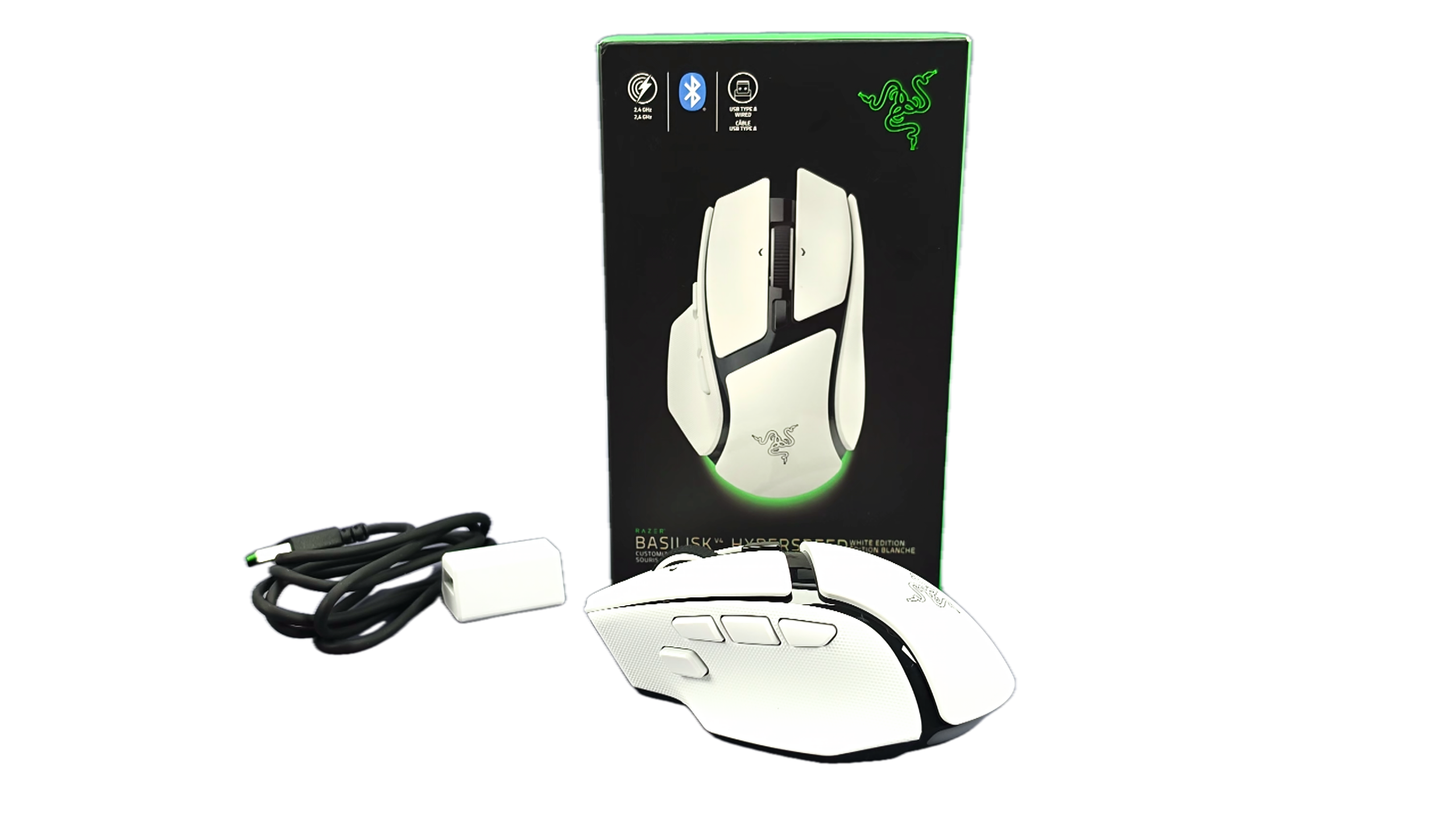
The Razer Basilisk V4 HyperSpeed is a full-size, right-handed mouse with an ergonomic shape and its signature thumb rest, designed to reduce finger drag and deliver smoother clicks in-game. At about 94g, it feels substantial rather than nimble and ultralight. That weight is a trade-off: it may suit players who value a stable, comfortable grip and a broad set of controls, but it is not the obvious choice for someone seeking the lightest possible mouse for competitive play.
Basilisk V4 HyperSpeed vs V4 Pro
This review is on the Basilisk V4 HyperSpeed, but because much of the information out there mixes the models together, it makes both confusing to buy. The V4 Pro features the high-performance Razer Focus Pro 50K Optical Sensor Gen-3 (up to 50,000 DPI) with 14 customizable controls, including an extra button next to the left-click (M1 edge button) and a third side button, 7-zone Razer Chroma RGB, and weighs 100g, while the HyperSpeed uses the Razer Focus X 33K optical sensor with 12 customizable controls and weighs 94g. The V4 Pro lasts up to 200 hours on standard wireless (and up to 275 hours on Bluetooth), and the HyperSpeed lasts up to 140 hours.
The Razer Basilisk V4 HyperSpeed costs $109.99, while the Basilisk V4 Pro costs $169.99, making the HyperSpeed the more affordable option for budget-conscious gamers. The Basilisk V4 family’s sloped body and thumb support are comfortable and natural to hold. Its futuristic styling pairs with Razer Chroma RGB lighting, including underglow, which adds visual flair, but you can also switch it off if that’s too much.
The Razer Basilisk V4 HyperSpeed is built to withstand over 100 million clicks, with switches designed for reliable, easy setup, and every click registers flawlessly without delay.
Customizable Controls and RGB with the Basilisk V4 HyperSpeed
The HyperSpeed’s appeal is not just its shape: it puts a range of commands within easy reach. Assign an endless combination of commands and macros across 12 easy-access controls, plus the acclaimed multi-function trigger for essential actions like push-to-talk, ping, and more.
Razer Synapse
With Razer Synapse, HyperShift, and the multi-function trigger, you can assign a second set of commands to buttons, making the layout useful for macros, push-to-talk, pings, shortcuts, or game-specific actions. Hold the multi-function trigger or any assigned button to double every control, unlocking a second layer of commands when you need it. The multi-function trigger is positioned to prevent accidental misclicks while staying easy to reach, and you can remap it to any action in Razer Synapse.
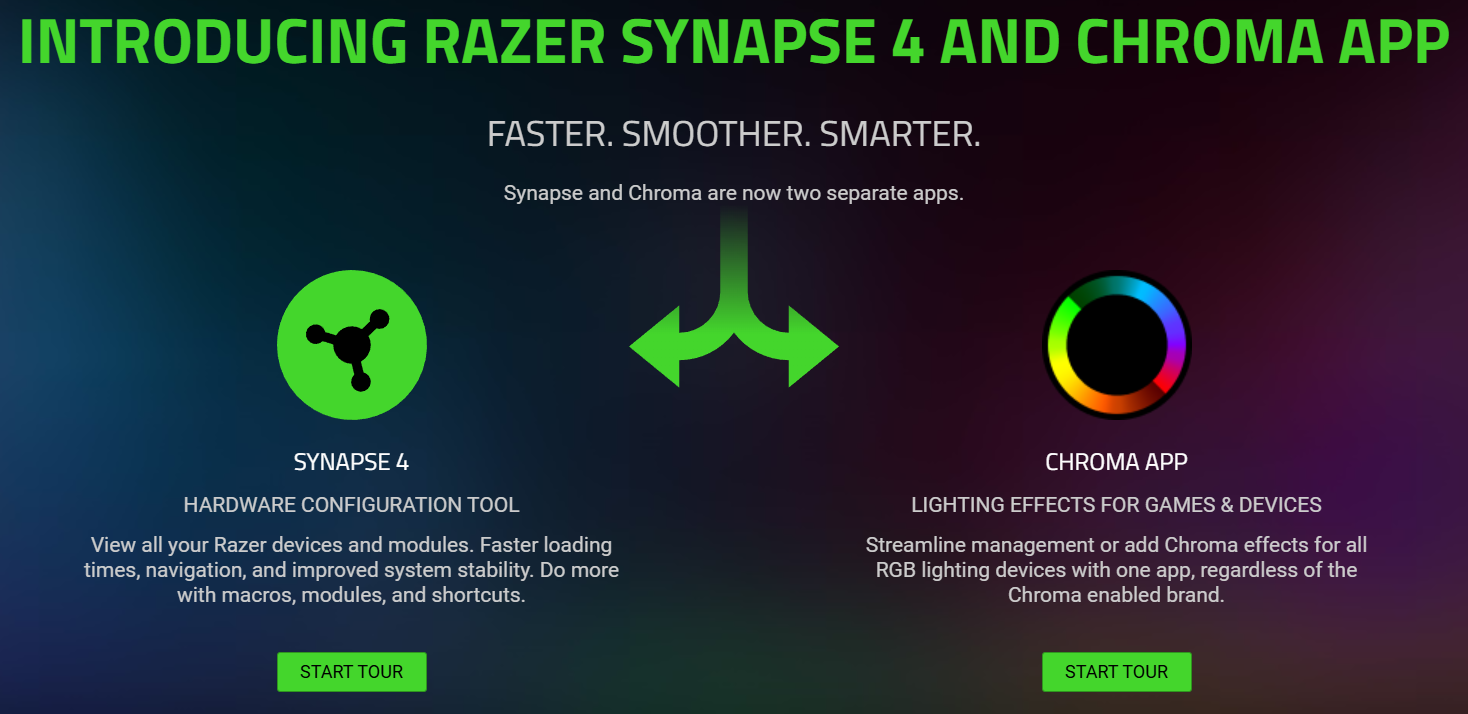
I know Razer Synapse and Chroma haven’t been the best in the past, but now they are two separate apps. It has a brand-new interface with a modernized UI and simpler navigation, making setup and customization faster, and you can manage additional settings in one place. So I am glad to say it’s not as intrusive as it was in the past.
Okay, back to the setup. Like anything new, this mouse’s versatility comes with a learning curve. It takes time to get used to the number and placement of inputs and how to customize them in Razer Synapse. But once you get familiar with the new button options, they become well worth the setup time. The same general consideration applies here: gamers who use the extra controls may appreciate them, while those who rely on only a few buttons may find the layout busier than necessary and choose not to use them, or decide this mouse isn’t for them.
Razer Chroma
With Razer Chroma RGB, you can customize each lighting zone with 16.8 million colors and countless lighting effects for better gaming immersion, and it reacts dynamically with hundreds of Chroma-integrated games. Chroma has a lot to unpack, but I don’t want to get into it in this video. If you love RGB effects, this mouse is worth considering.
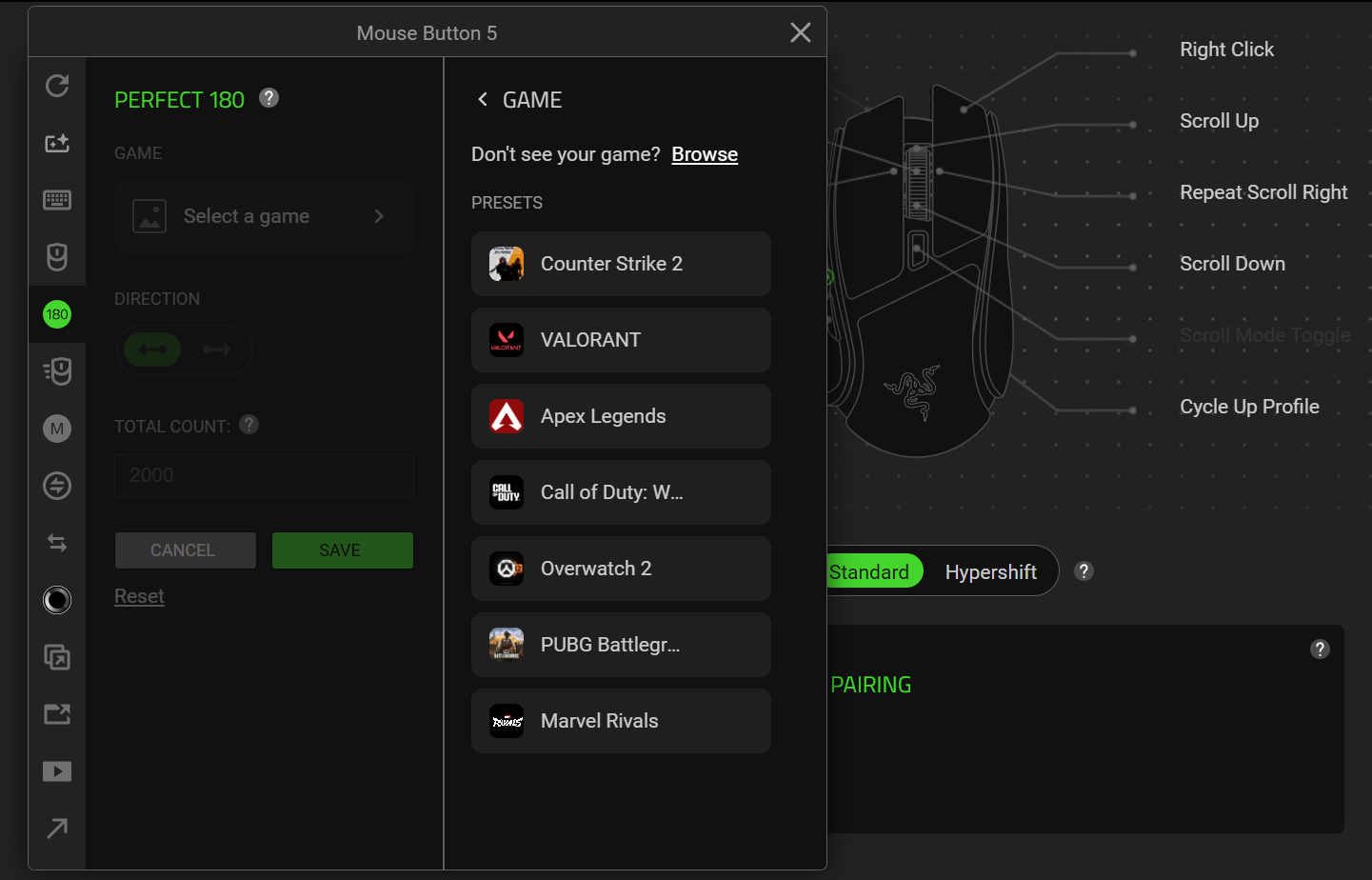
Perfect 180
People seem hyped about the “Perfect 180”, but it appears that it’s currently only for certain games. The configurable “Perfect 180” action turns aim around with a button press. It can help with low-sensitivity play, but it may not suit every game or player—and competitive players should check whether the game allows it. I believe it would be a clear advantage in games, so its legitimacy is very questionable.
Sensor and Gaming Performance
The HyperSpeed version lists a Razer Focus X 33K Gen-3 optical sensor with 99.8% resolution accuracy, Smart Tracking, and 1-DPI adjustments. That is a high-performance sensor with ample sensitivity for a wide range of play styles. The advertised 33,000 DPI maximum is more of a specification ceiling than a practical target for most users; the more useful promise is precise, adjustable tracking.
The mouse supports polling rates up to 8,000 Hz in both wired and wireless modes. Higher polling rates provide more frequent position updates, but they matter most to players with compatible systems who are sensitive to small differences in responsiveness. It can also increase power consumption, so using the maximum rate means trading peak responsiveness for longer intervals between charges.
The listed Gen-4 optical switches are rated for more than 100 million actuations. I find every movement and click crisp, extremely precise, and very satisfying. The clicks aren’t loud, and the buttons aren’t either. With that many actuations, the durability rating is reassuring, though real-world longevity will naturally depend on use and/or abuse.
HyperScroll Tilt Wheel
The four-way HyperScroll tilt wheel is one of the mouse’s most distinctive features. It supports tactile scrolling for controlled selections in high-precision tasks, and the free-spin mode is perfect for quickly moving through long pages or lists. Smart-Reel can switch between tactile and free-spinning behavior based on scrolling speed, while Synapse lets users adjust its behavior.
That flexibility makes sense beyond gaming. Tactile steps can help with weapon or inventory selection, while free-spin is convenient for long documents and web pages. The wheel’s feel and useful modes make it a strong feature. But the main caveat is that users who prefer a simple, conventional scroll wheel may not need or want all of these options.
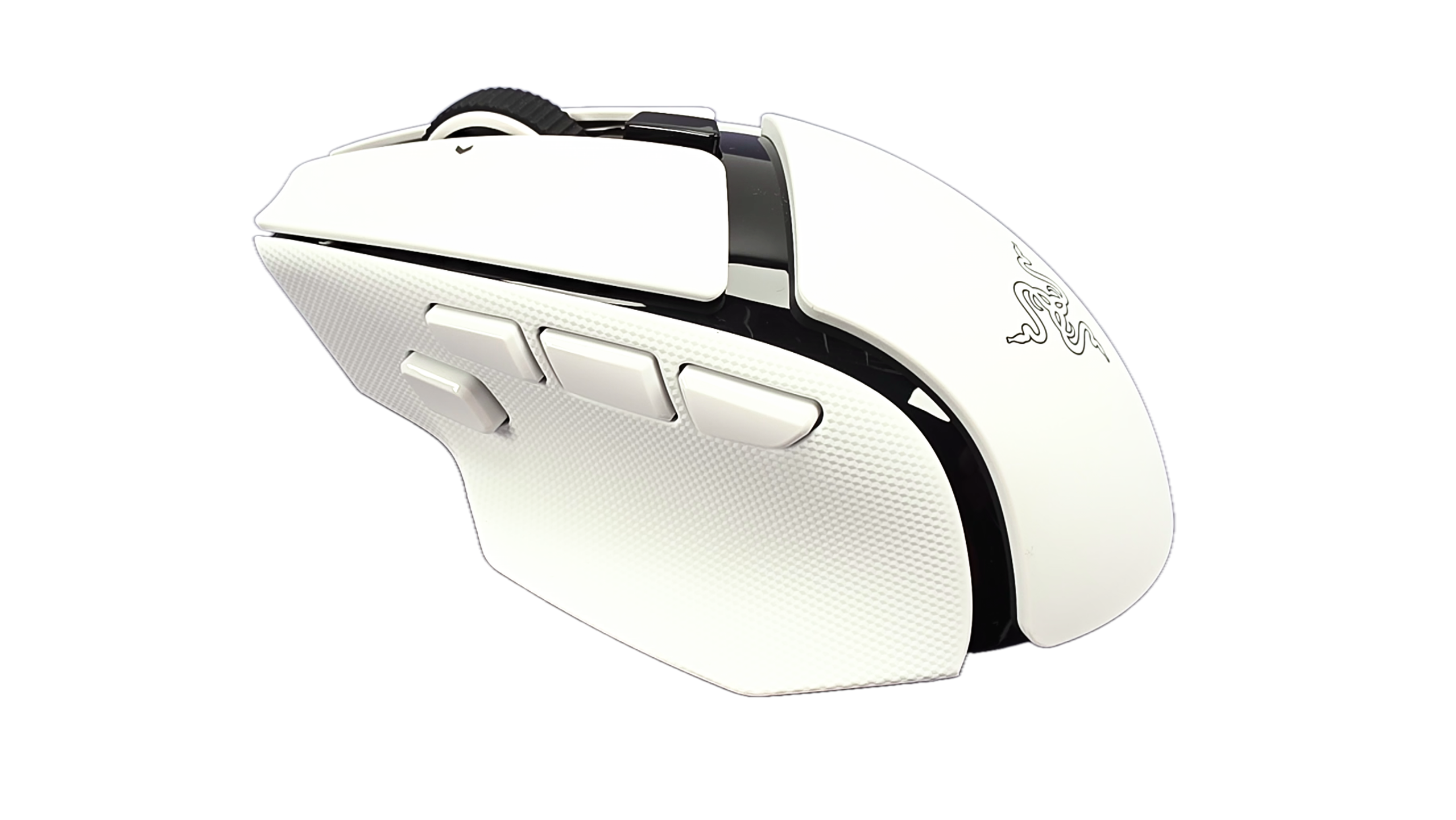
Side Buttons
One of the first things you’ll notice about the mouse is the four side buttons. Starting from the back of the mouse, it’s Mouse Button 4, Mouse Button 5, AI Prompt Master, and the multi-function trigger. You can remap all three buttons in Razer Synapse to suit your playstyle, and the multi-function trigger is positioned within reach without accidental misclicks. You can remap it to any action for instant, on-demand control also in Synapse.
Connectivity, Battery, and Accessories
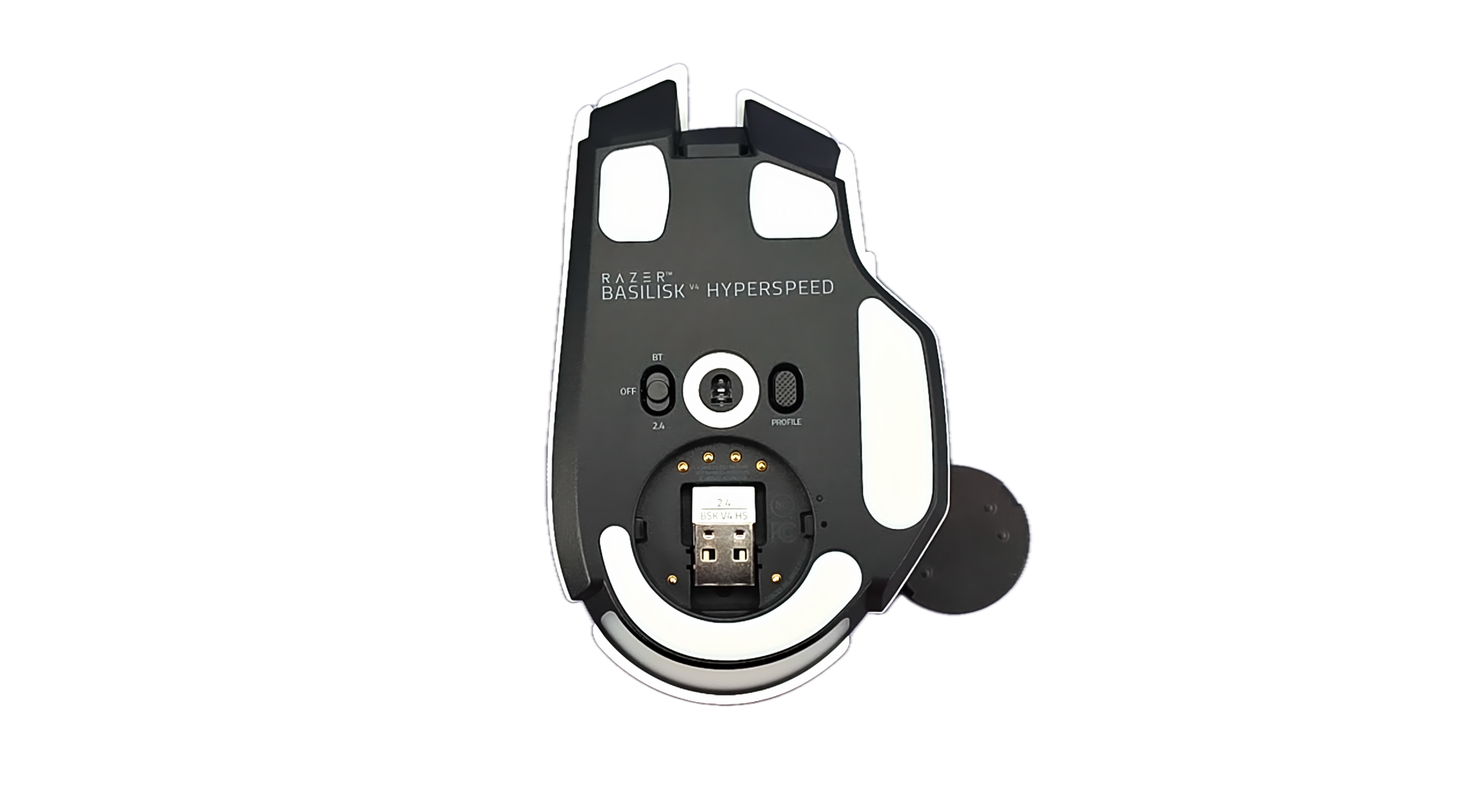
The HyperSpeed offers Razer HyperSpeed wireless, Bluetooth, and 2.4 GHz USB wired connectivity. Bluetooth lets you switch between devices, while the wireless dongle and cable support gaming setups. It’s a handy feature for anyone switching between a desktop, laptop, or tablet.
Battery figures vary across the supplied materials. The HyperSpeed-specific product description rates it for up to 140 hours over HyperSpeed wireless and 225 hours over Bluetooth. Separate figures of 200 hours at 1,000 Hz and 54 hours at 8,000 Hz appear in information that also describes the higher-spec V4 Pro, so they should not be treated as confirmed HyperSpeed runtimes. In either case, actual battery life will depend on polling rate, lighting, and use.
Wireless charging is supported, and Razer sells separate, more convenient charging accessories than just the included cable. Razer has also introduced the new Mouse Dock V2 Pro, a wireless charging dock that uses magnetic charging and includes an integrated 8,000 Hz transceiver. The Mouse Dock V2 Pro also features Razer Chroma RGB lighting with an underglow effect. Or use the Razer HyperFlux V2 wireless charging system to level up your gaming setup and stay ready to game!
Price and Who It Suits
At $109.99, the HyperSpeed sits well below the Basilisk V4 Pro’s $169.99 price tag. It appears to retain much of the family’s ergonomic design, wheel versatility, switch technology, and high polling-rate support, but uses a 33K sensor rather than the Pro’s 50K sensor and offers fewer RGB options. The HyperSpeed has 12 customizable controls, whereas the Pro offers 14.
The HyperSpeed makes the most sense for someone who wants a comfortable, feature-rich ergonomic mouse and will use its extra inputs or scroll-wheel modes. But its weight, customization learning curve, and optional accessory costs are less appealing if you want a minimal, lightweight mouse.
Overall Thoughts
The Razer Basilisk V4 HyperSpeed looks like a strong all-rounder for players who value comfort and control over an ultralight design. Its ergonomic shape, versatile four-way scroll wheel, plenty of configurable inputs, and 8,000 Hz polling support make it well-suited for both gaming and everyday use. The trade-offs include its 94g weight, the setup learning curve, and the fact that you may need, or just want, additional charging accessories sold separately.
At $109.99, it is most compelling for users who will take advantage of its customization and multi-mode wheel at an affordable price. Just be sure to distinguish the HyperSpeed’s specifications from those of the more expensive V4 Pro ($169.99) before you buy.

