

Features
- Print up to 10 pages per minute (PPM) black, 7 pages per minute color
- 2.4-inch color touchscreen display
- Auto 2-sided and borderless printing
- Wi-Fi & wireless printing (802.11a/b/g/n/ac, dual band)
- Replacement cartridges: HP 68 Black Original Ink Cartridge (~160 pages yield), HP 68 Tri-Color Original Ink Cartridge (~120 pages yield), and HP 68e EvoMore Black Original Ink Cartridge (~320 pages yield)
- Compatible operating systems: Windows 10 or 11, macOS 12 Monterey, macOS 13 Ventura, macOS 14 Sonoma, macOS 15 Sequoia, or Linux
- Faxing: mobile fax (send only)
- Dimensions: 17.05″ W x 14.21″ D x 5.35″ H
- Weight: 11.28 lb
- USB cord must be purchased separately
The HP Envy 6155 Wireless All-in-One Inkjet Printer
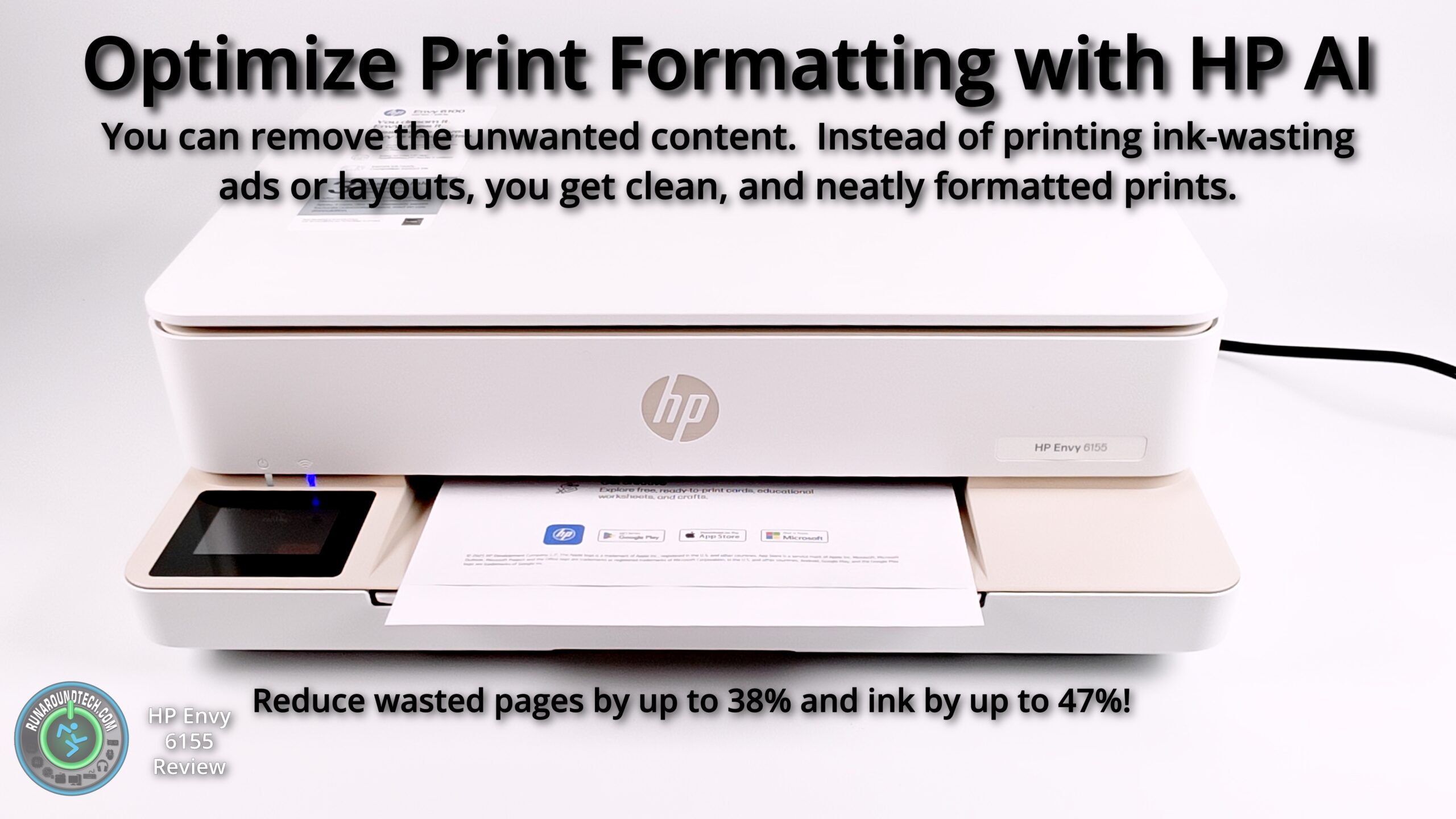
Today, we will be looking at the HP Envy 6155 printer. This is a compact all-in-one printer that can print up to 10 pages per minute in black and 7 pages per minute in color with a 100-sheet input tray and a 25-sheet output tray. It features a 2.4″ color touchscreen display, wireless printing, and HP AI. With HP AI, the printer can optimize print formatting to reduce wasted pages by up to 38% and ink by up to 47% by removing unwanted clutter from web pages, such as ads and logos, for perfectly formatted prints.
With the Envy 6155, you can print, scan, and copy from any device with the easy-to-use HP app. Simply download the app from hp.com for Android or iPhone, or from the App Store or Google Play. It’s simple to set up; you can register or use it as a guest. Once installed, you can easily print from any device in seconds.
The printer uses a two-cartridge ink system compatible with HP 68 Black, HP 68 Tri-Color, or the HP 68e EvoMore cartridges. It has a simple flatbed scanner with connectivity options including USB, Wi-Fi (802.11a/b/g/n/ac), and Wi-Fi Direct. It’s compatible with the HP Smart app, which lets you perform various tasks and adds additional functionality. The ink cartridges are located by lifting the top cover. Simply slide the cartridges in, push up a little, as with most HP printers when installing them.
The printer is quite compact. It has an unusual shape. It’s approximately 17 inches wide, 14 inches deep, and 5.5 inches tall. I would say it’s about the average width of most printers, but much thinner than most. So if you’re short on space or height, the HP ENVY 6155 printer could be a great option for your workspace and printing or scanning needs.
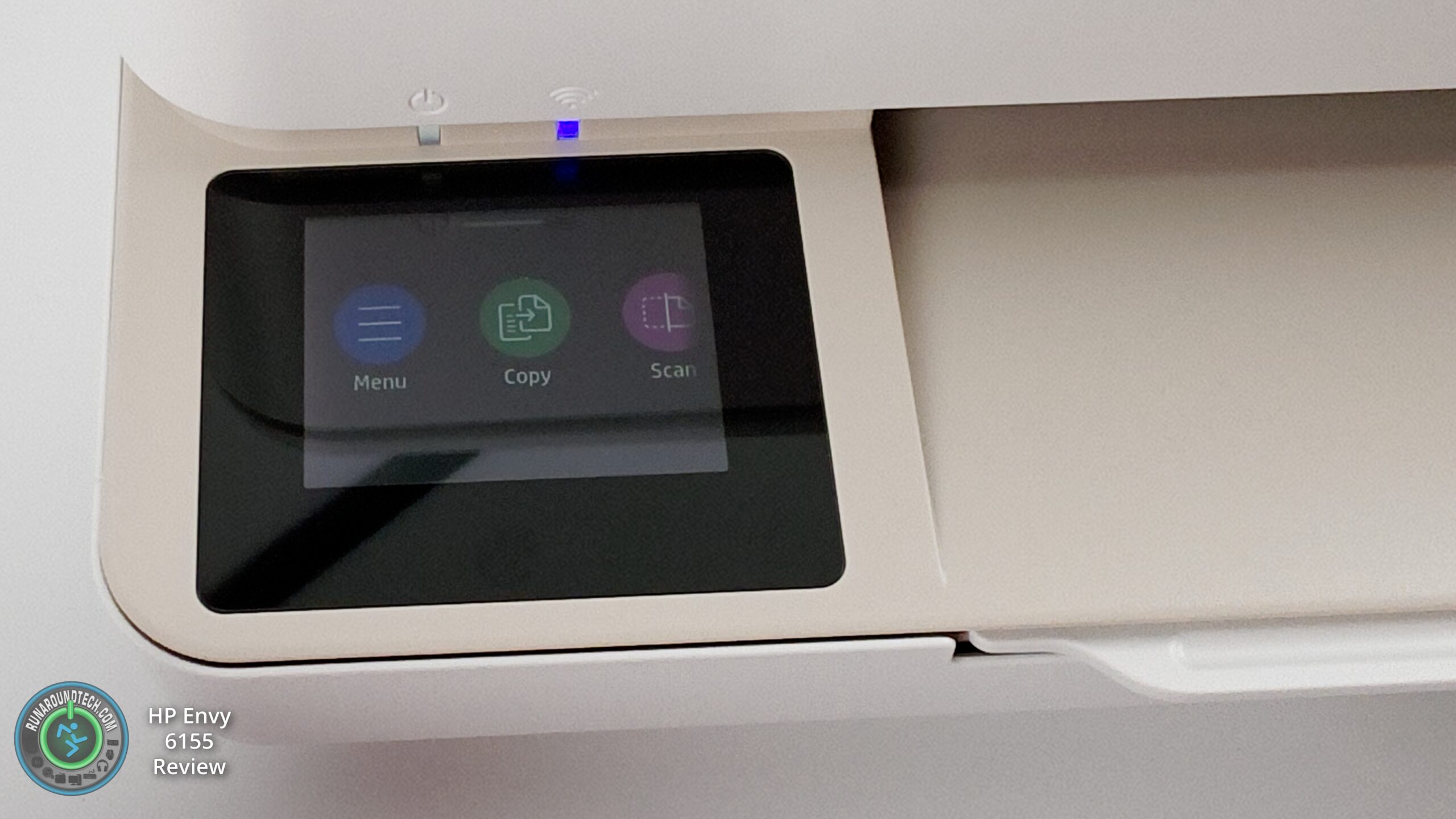
2.4-inch Touchscreen Display
There is a 2.4″ diagonal color capacitive touchscreen (320 x 240) that makes everything easy to access and set up in minutes. Using the touchscreen display, you can easily set up the printer, connect to a WiFi network, configure printer settings, install firmware updates, copy and scan, order supplies, and even get help. Everything is accessible in just a few seconds, compared to other printers without a touchscreen, which require you to fiddle with buttons. Everything can be set up and working in just a few minutes.
The Document Feeder and Paper Support
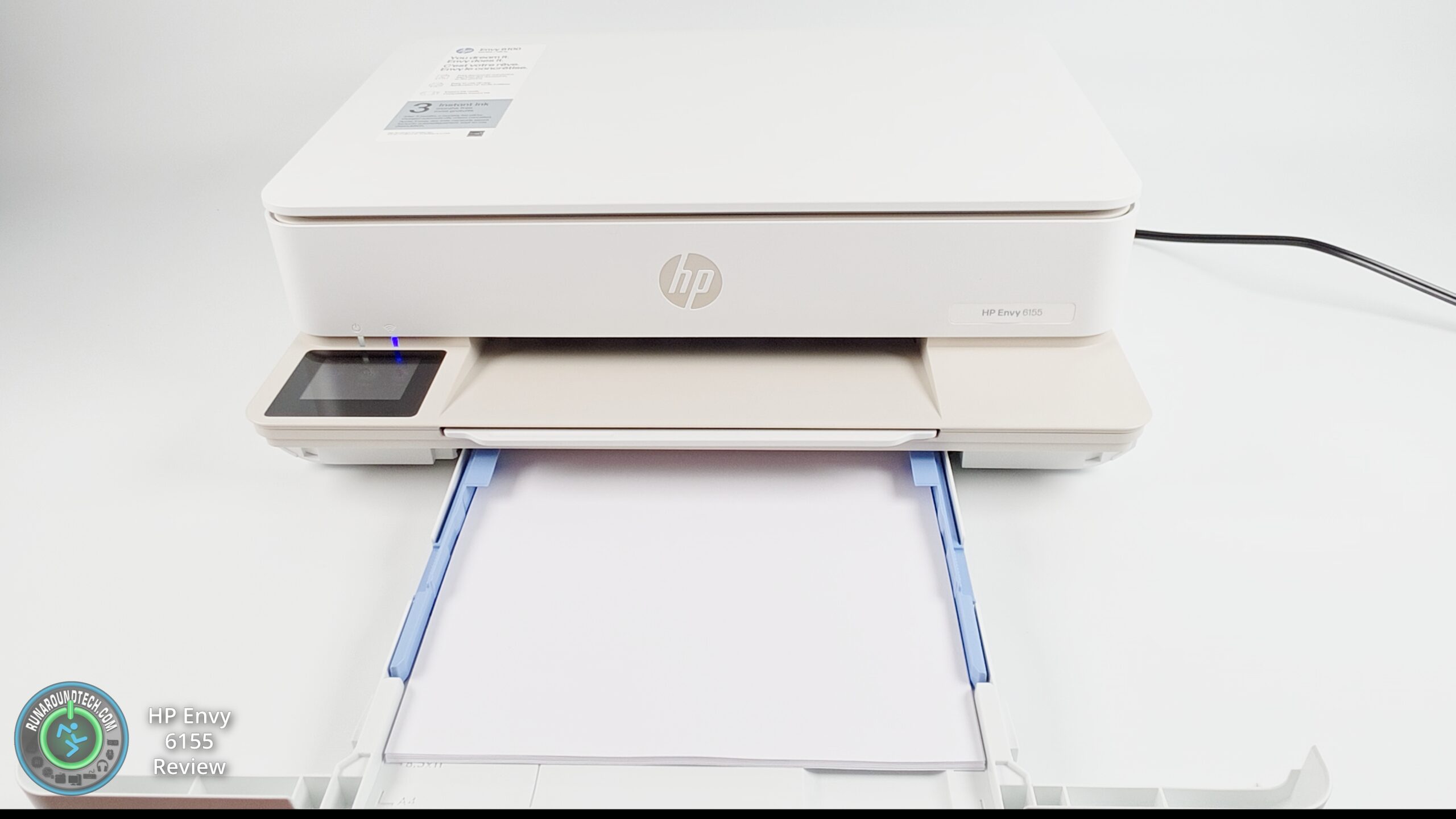
The HP Envy 6155 does not have a document feeder, so you can only scan one page at a time. But for a compact printer like this, that is expected, and shouldn’t be a problem unless you are scanning a lot of stuff; if so, then this printer is probably not the best choice.
The paper tray and the paper support arm need to be compact so nothing sticks out when not in use. You can pull out the paper support arm and slide it back in. The paper tray also slides out easily; just fill it back up, and it slides back into place. The paper tray holds up to 100 sheets. I assume that means the industry-standard 100 sheets of 20-lb paper.
Print Quality
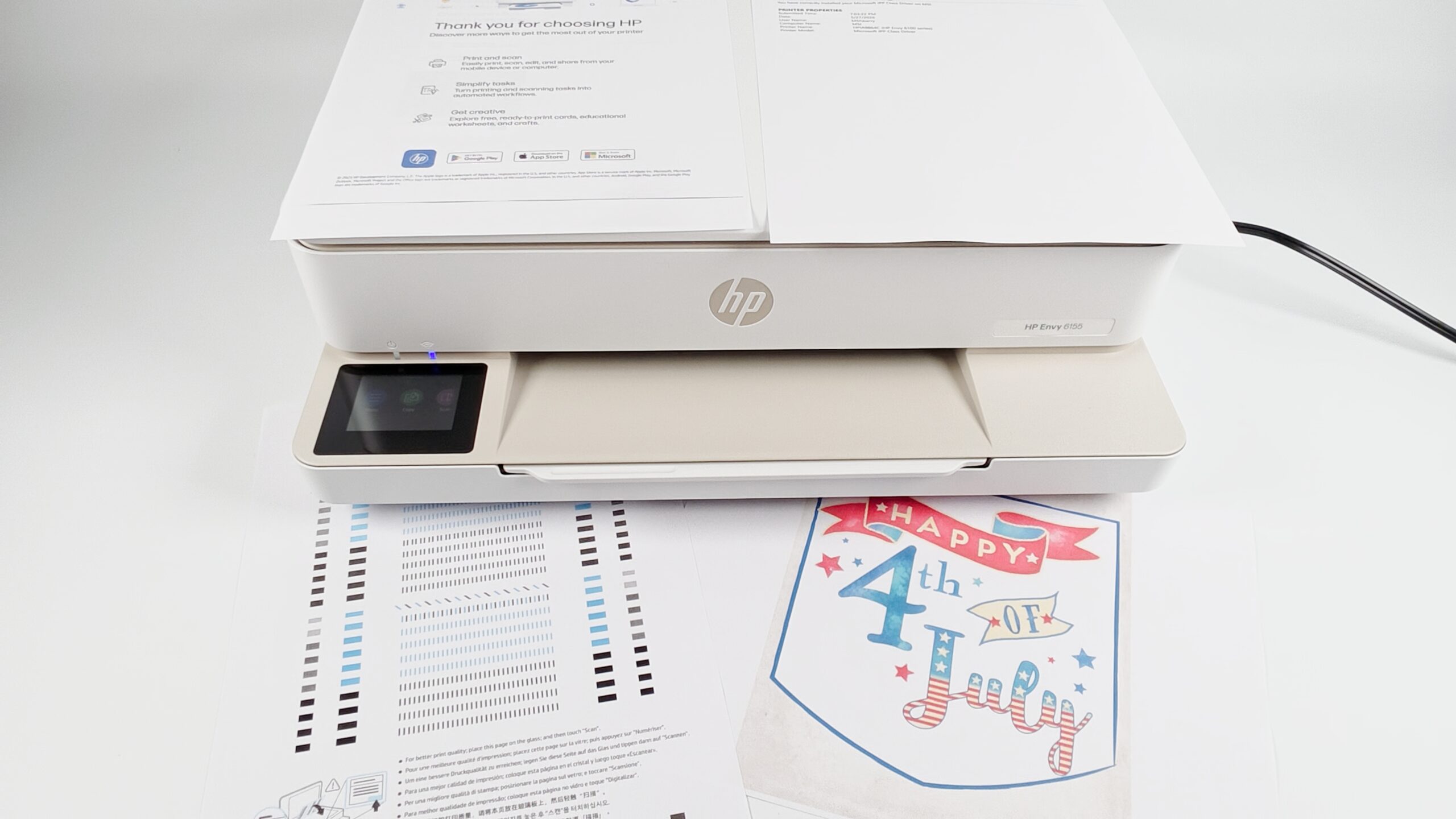
The print quality and speed are nothing outstanding, but they are completely fine for home or small office use. I printed out a few test pages from my PC and from my phone to see how everything performs. It’s pretty standard print quality; maybe the colors are a little too faint or bright. It’s not better than the competition, but it’s not the worst either. So overall, it gives you good results, although again, not outstanding.
If you’re not using a WiFi connection, you can also connect your device directly via the USB port on the back, but the cable is not included.
Conclusion
So to wrap things up. The printer is not the fastest, and probably not the best choice for fast black or color printing. But at 10 pages per minute in Black and 7 pages per minute in color, it’s fine for those who just print occasionally and don’t require quick printing or do much printing. I did not test it, and I am pretty sure that a full-page print of either Black or Color would probably yield far fewer pages per minute than that. But the major issue is its high per-print cost. With its low page yields, you’ll need to replace the ink cartridges often if you print frequently.
So overall, it’s a great choice for those who want a budget printer, aren’t worried about printing fast, and just need a basic printer to print and/or scan occasionally. For those, the HP Envy 6155 is worth considering.
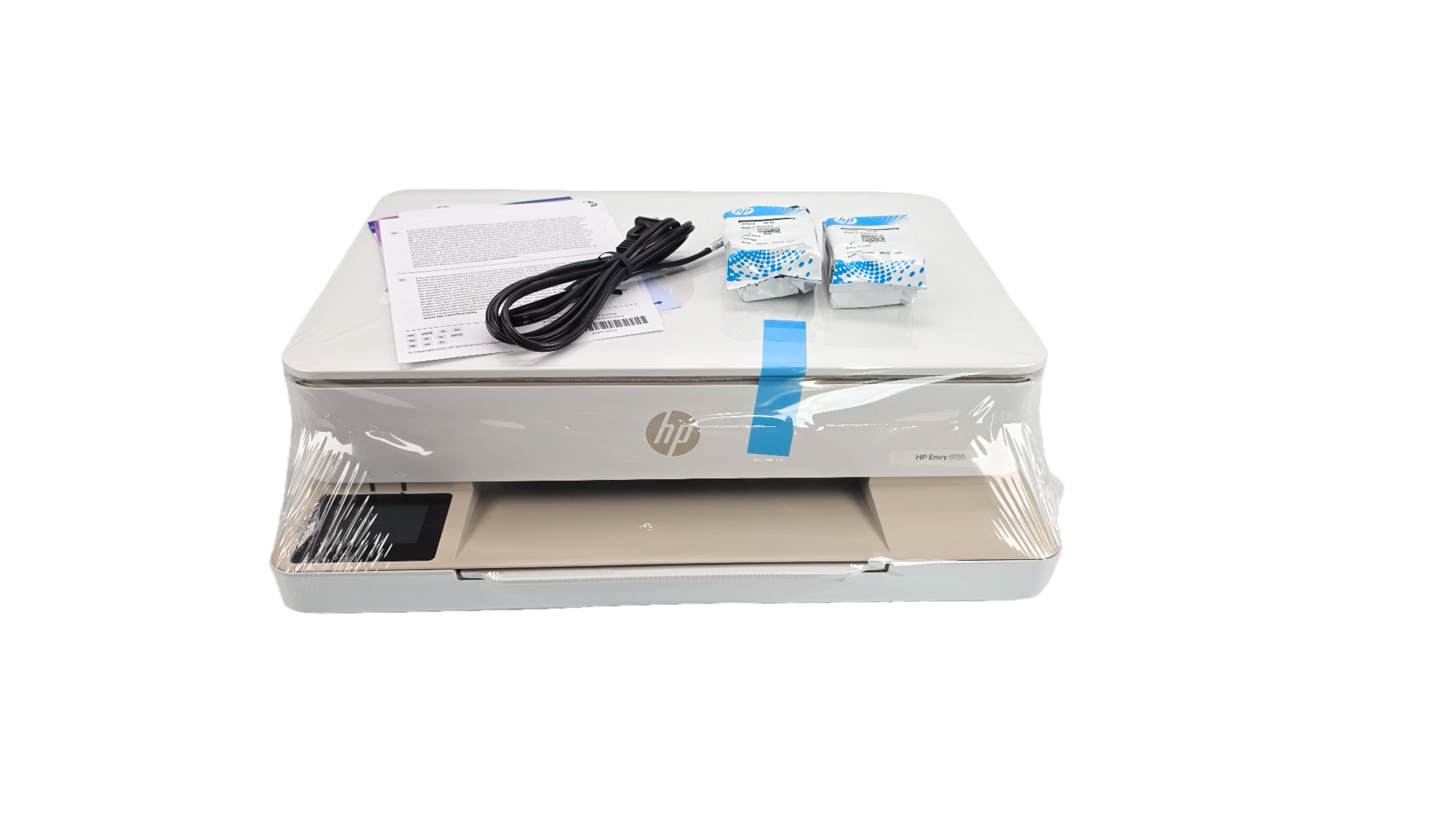
What’s in the box
- HP Envy 6155 All-in-One Printer
- HP 68 Setup Black Cartridge (~120 pages yield)
- HP 68 Setup Tri-Color Cartridge (~75 pages yield)
- Setup guide
- Reference guide
- Power cord

